

3. Building the Alfred Workflow
Installing the Script
Place the script at /usr/local/bin/translate so Alfred can invoke it.
cp translate /usr/local/bin/translate
chmod +x /usr/local/bin/translate
Once the path is in your $PATH, you can also run it directly from the terminal as translate.
Creating the Workflow
Open Alfred Preferences and create a new Blank Workflow on the Workflows tab. The name is up to you; here it is called "Translate."
Configuring the Components
This Workflow connects two triggers (Hotkey and Keyword) to a single Run Script, and then passes the Run Script's output to a Text View.
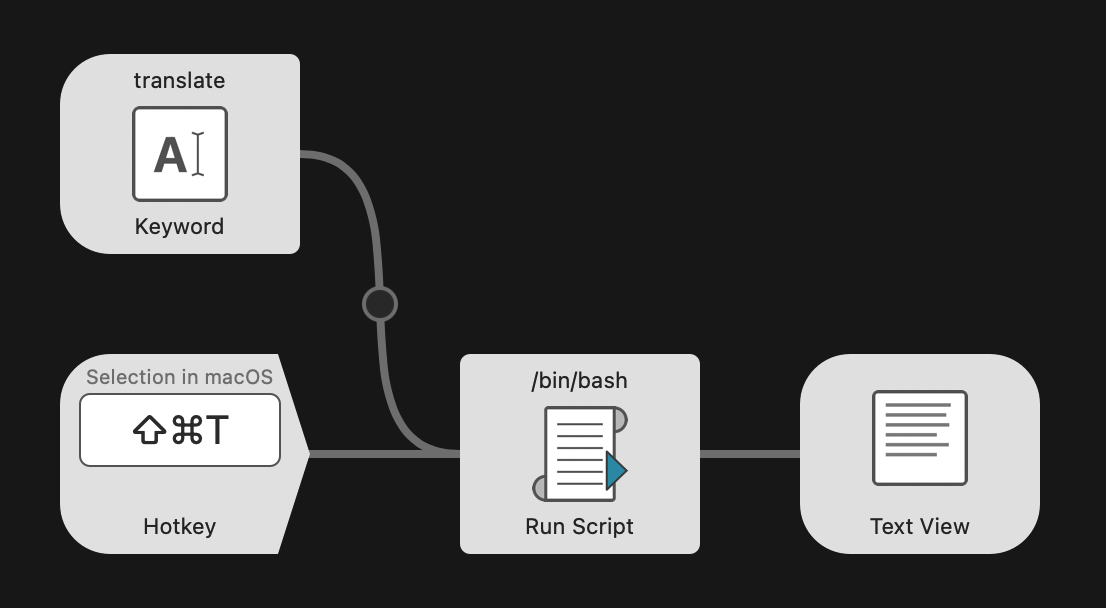
Figure 1: Overview of the Workflow. Both the Hotkey and Keyword triggers connect to Run Script.
Hotkey
Right-click the Workflow canvas and select Triggers → Hotkey to add a Hotkey.
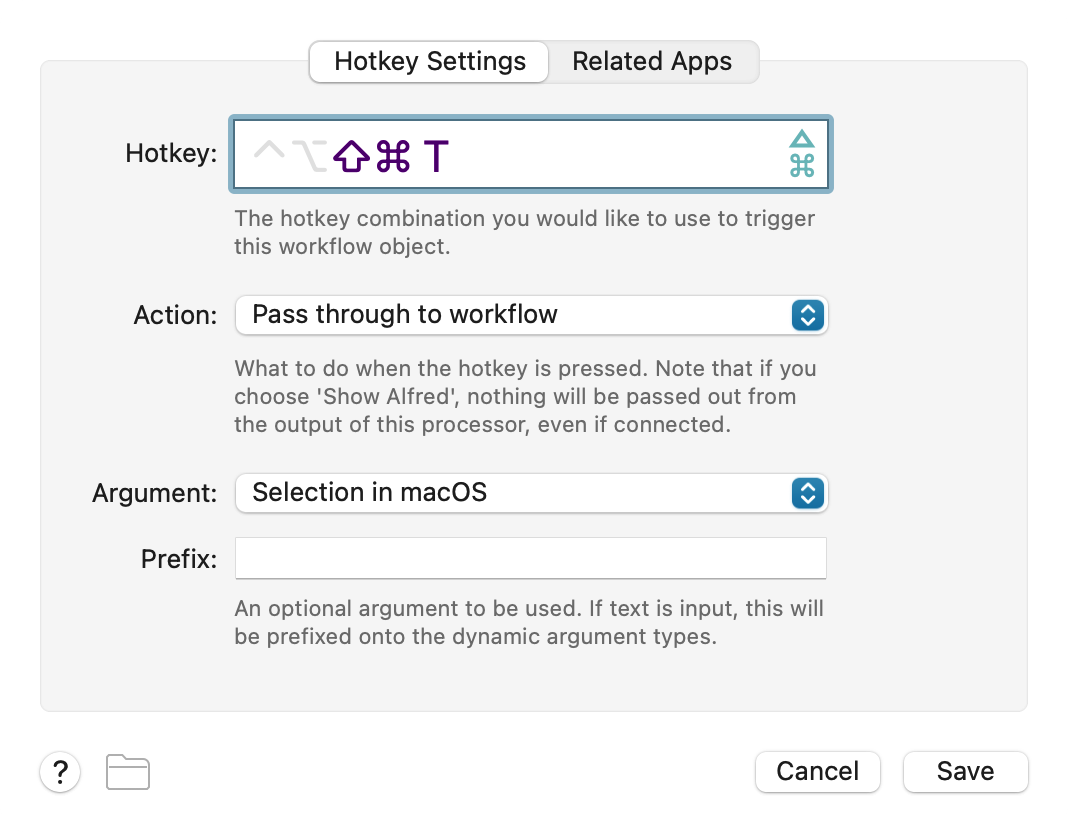
Figure 2: Hotkey configuration.
- Hotkey: Set any key combination. ⇧⌘T is used here.
- Action: Pass through to workflow
- Argument: Selection in macOS
Setting the Argument to "Selection in macOS" causes the system to retrieve the currently selected text and pass it to the workflow when the shortcut is triggered. If no text is selected, an empty string is passed, but since the script falls back to the clipboard, the clipboard contents will be used as the translation target in that case.
Keyword
Add Inputs → Keyword.
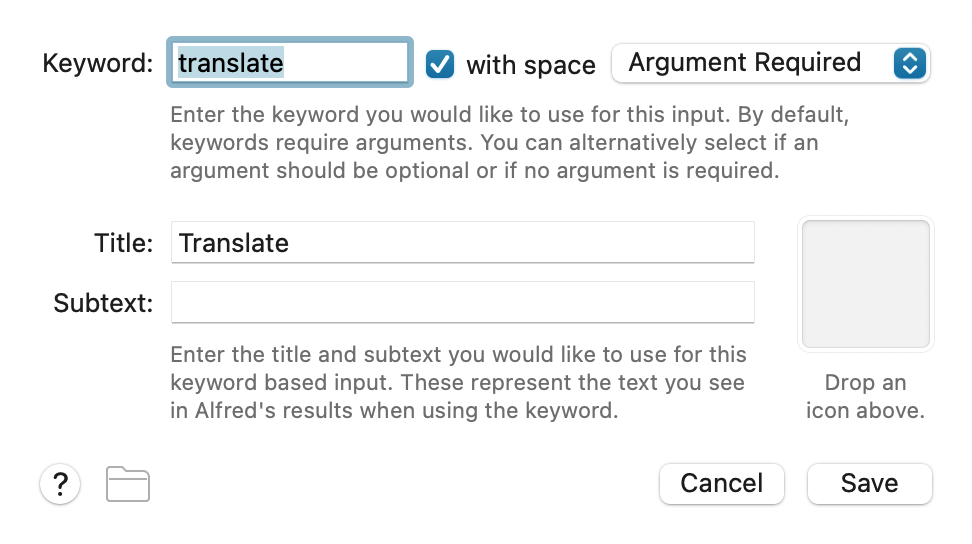
Figure 3: Keyword configuration.
- Keyword: translate
- with space: checked
- Argument: Argument Required
- Title: Translate
Type translate in the Alfred search bar followed by the text to translate, then press Enter to run the translation.
Run Script
Add Actions → Run Script and connect it from both the Hotkey and Keyword components.
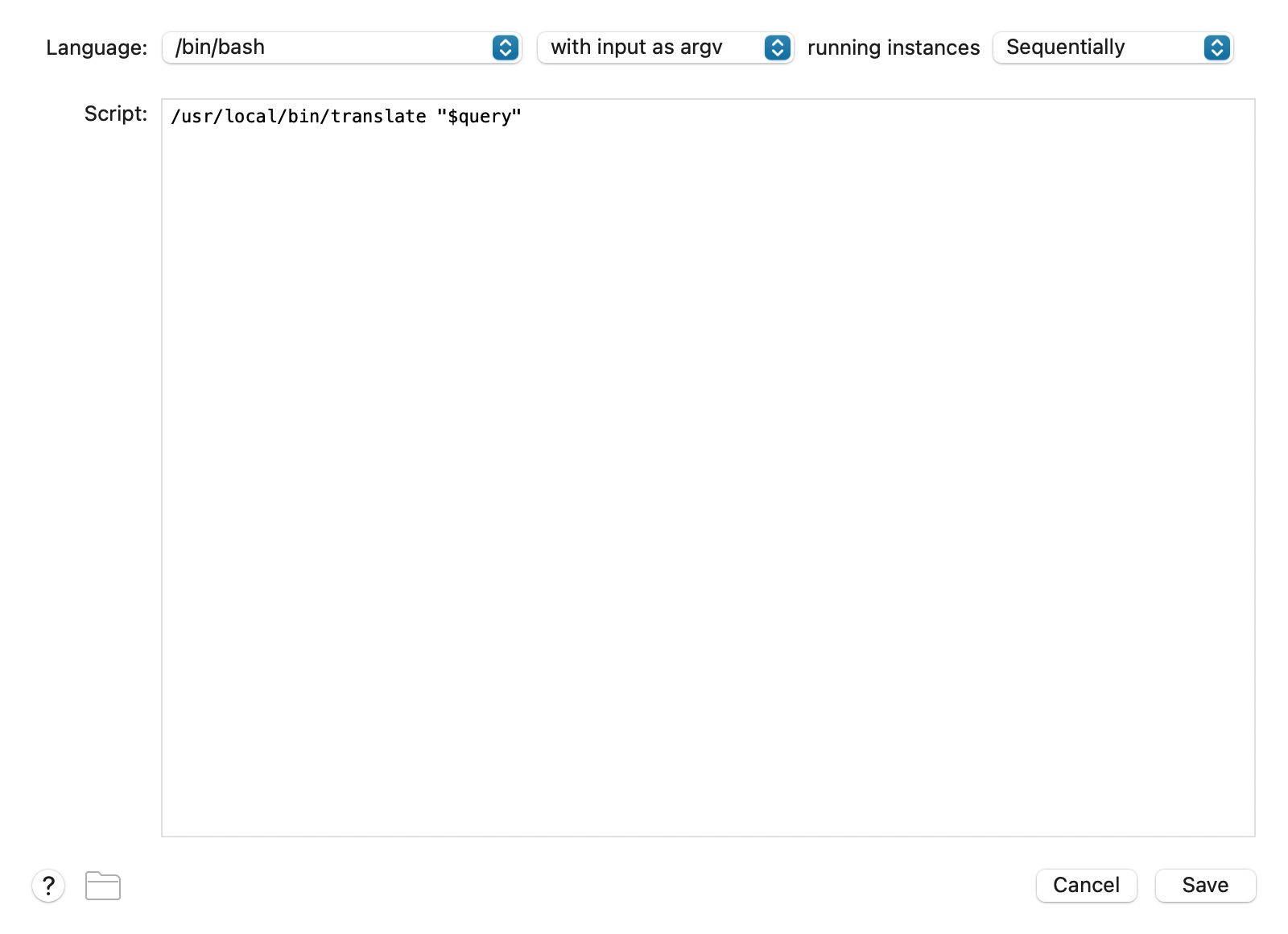
Figure 4: Run Script configuration.
- Language: /bin/bash
- with input as argv
- running instances: Sequentially
- Script:
/usr/local/bin/translate "$query"
Alfred exposes the text passed from the previous step via the variable $query. Via Hotkey it contains the selected text; via Keyword it contains the text entered after the keyword. Wrapping with double quotes as "$query" ensures text containing spaces or special characters is passed correctly as a single argument.
Text View
Add Outputs → Text View and connect it from Run Script.
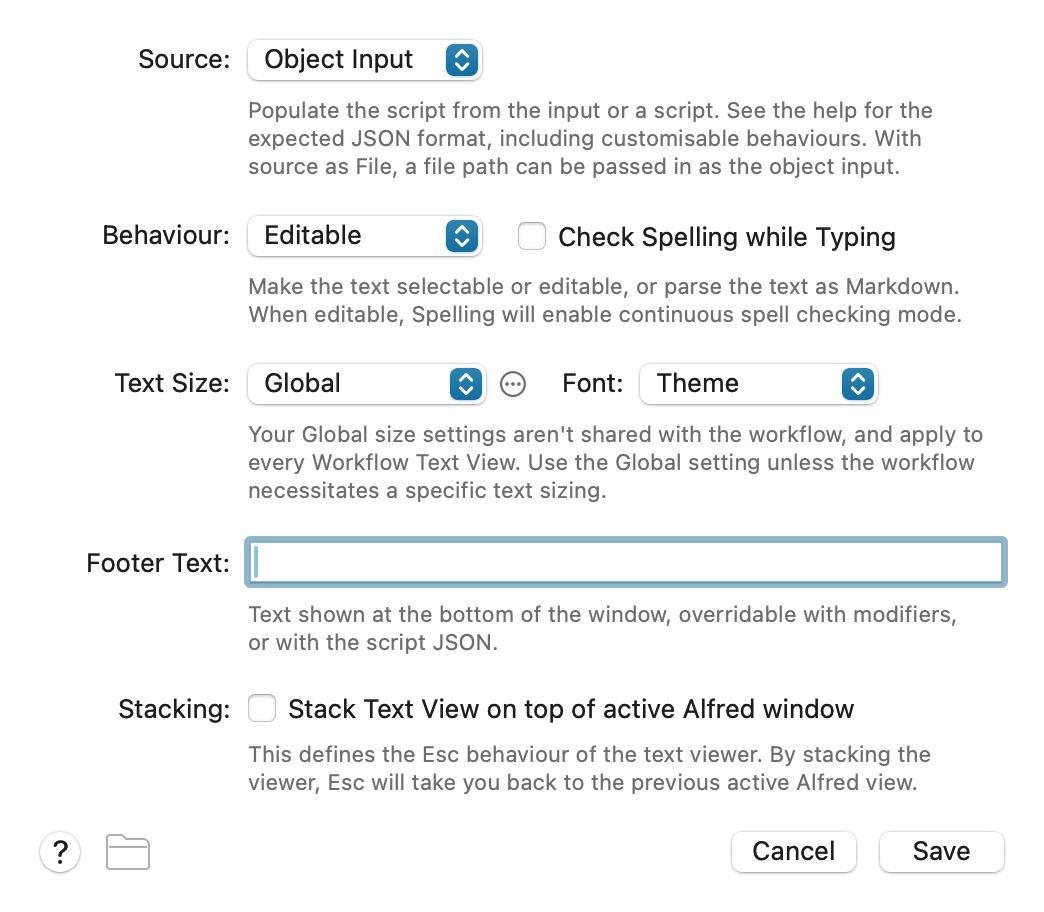
Figure 5: Text View configuration.
- Source: Object Input
- Behaviour: Editable
The standard output of Run Script (echo "$RESULT") is displayed in the Text View. Setting Behaviour to Editable allows you to select and copy text within the window. Since the translation result is already copied to the clipboard, you can either close the Text View immediately and paste, or use it to review the result.