

3. Trusting Canonical and Lenovo
Storage Replacement and Dual Boot Configuration
The ThinkPad X1 Carbon Gen 12 is an Ubuntu-certified machine, but the certified release is 22.04 LTS. A custom image is recommended, and the documentation warns that standard images may not work well, or at all (Standard images of Ubuntu may not work well, or at all.). Nevertheless, the actual installation proceeded essentially as a normal setup. In this case the chassis was opened immediately after unboxing, and the bundled M.2 SSD was removed. It was placed into a USB-C enclosure, imaged on macOS using the dd command, and that image was then written onto a Samsung 990 PRO. The factory SSD is preserved unchanged, and its image is retained as well, so recovery would be straightforward in the event of failure.
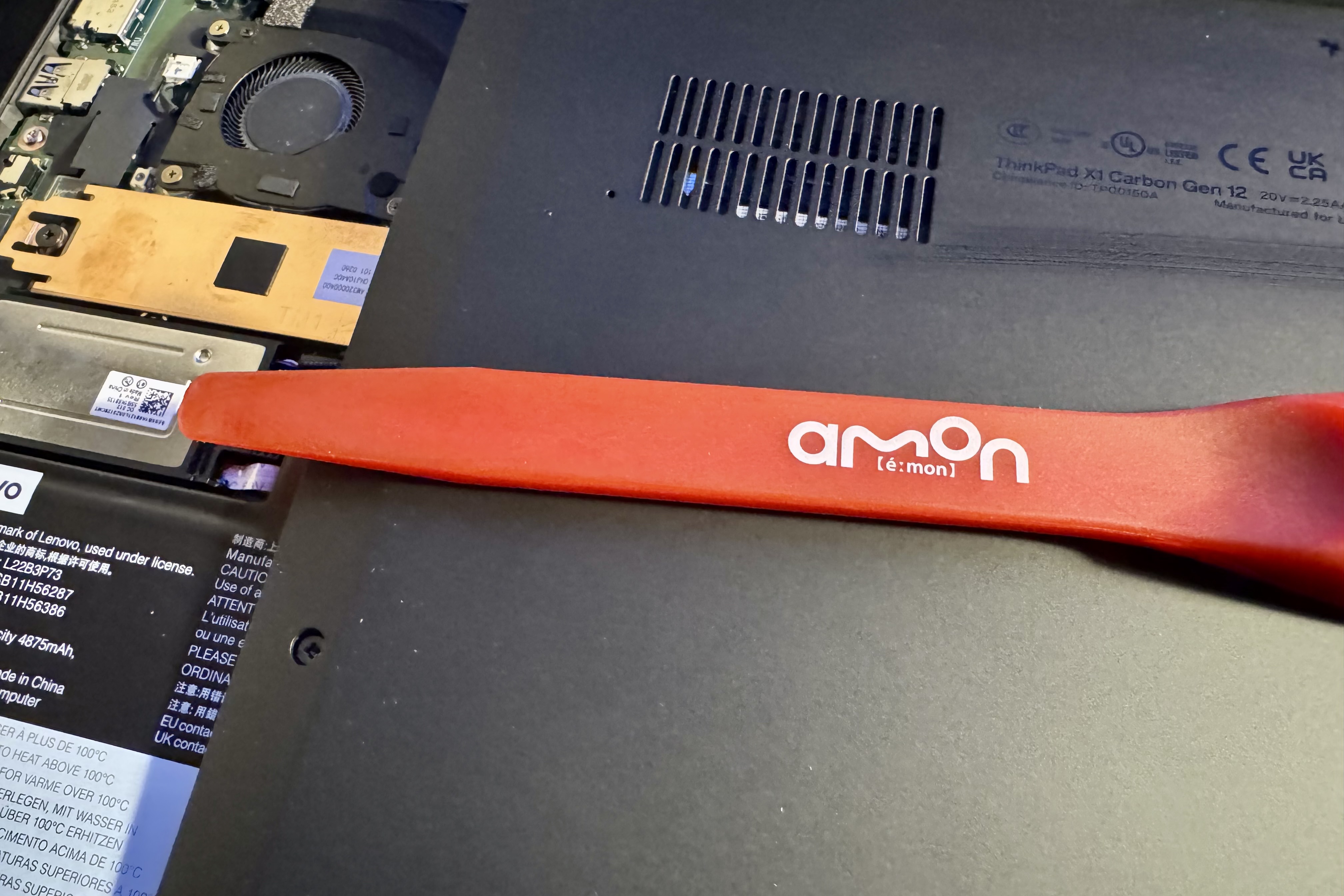
The opened X1 Carbon. Automotive trim removal tools prove useful here.
For removing the M.2 SSD, pages 58 and 59 of the ThinkPad X1 Carbon Gen 12 Hardware Maintenance Manual contain warnings to avoid static electricity, shock, and contact with the connector, and to manipulate the drive horizontally. The manual states that "the slot may be damaged," and on cue the new SSD did not slide in smoothly; the resulting cold sweat itself felt as though it might damage the slot.
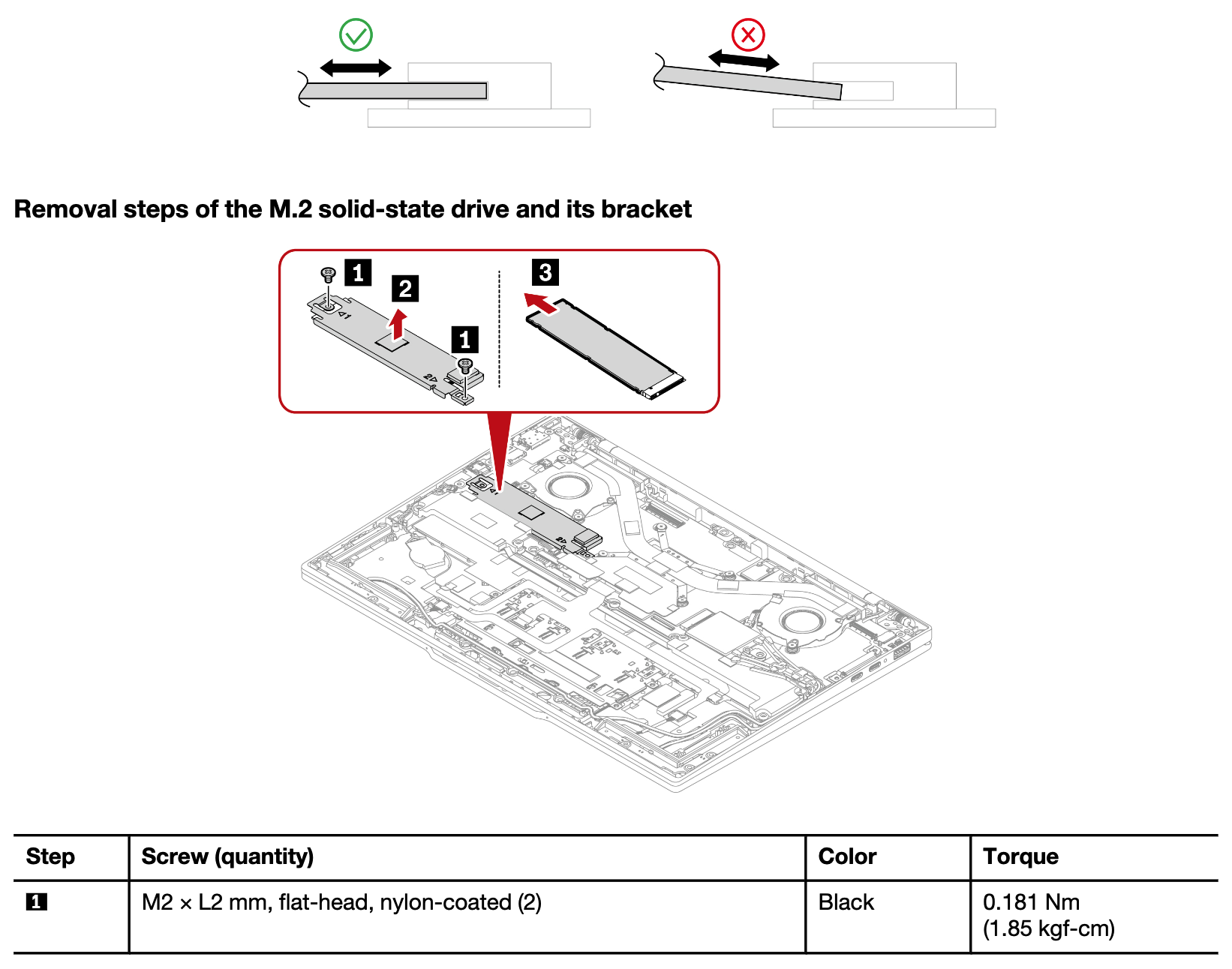
Page 59 of the ThinkPad X1 Carbon Gen 12 Hardware Maintenance Manual. The M.2 SSD removal procedure is illustrated.
For the storage layout, a dual-boot configuration was ultimately chosen. Dedicating the entire drive to Linux was an option, but firmware updates via Lenovo Vantage require a Windows environment, and the Windows Subsystem for Linux 2 was also on the evaluation list. Anticipating that Windows might retain some role, 1 TB was initially allocated to Windows and 3 TB to Linux. Partition adjustments were performed on the Windows side, since even when coexistence with another OS is intended, tidying the Windows partition first tends to be easier. WSL 2 is not discussed in detail in this article, but as a substitute for the Linux Desktop it proved limited, and as a result Windows ended up as a Lenovo Vantage-only environment. Discrepancies were particularly notable in filesystem and I/O behavior, the performance of Docker Desktop, the complexity of the operational model, and the feel of various Microsoft applications.
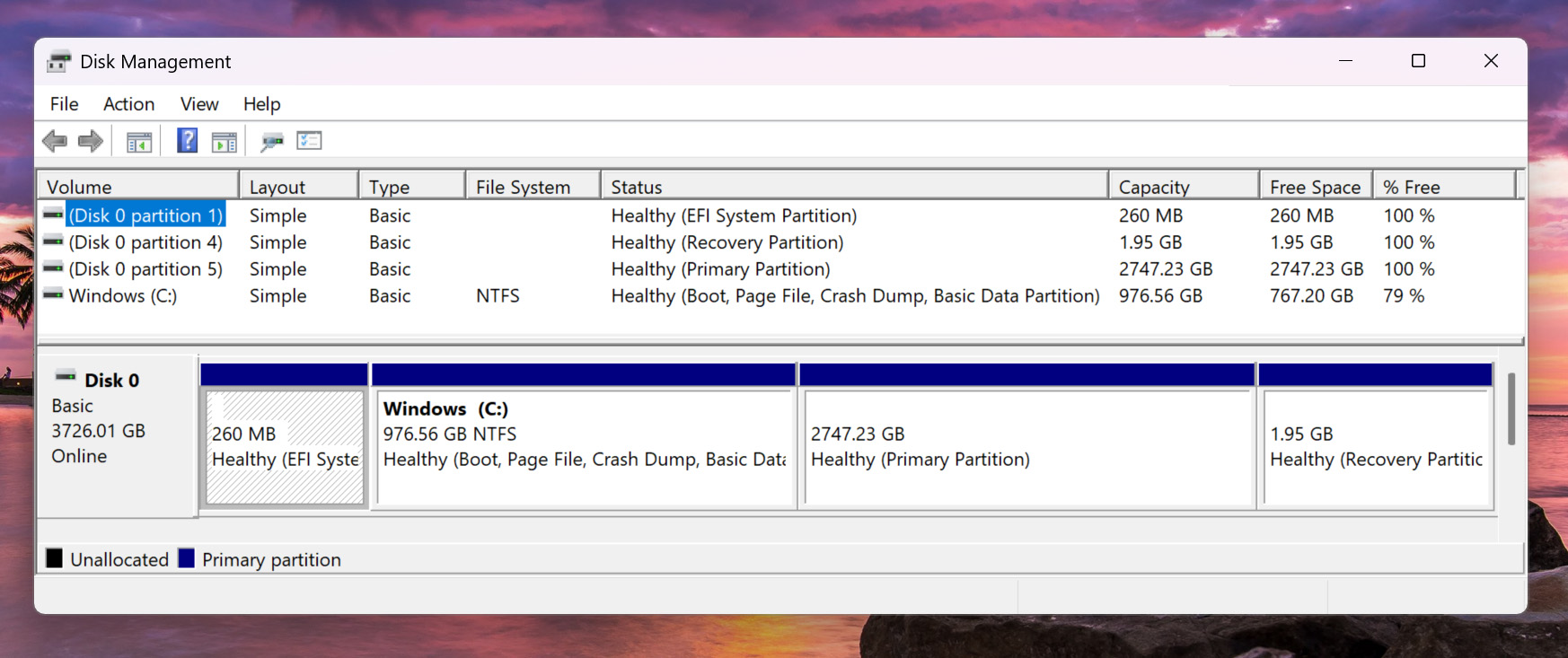
The dual-boot layout, with 1 TB allocated to Windows and 3 TB to Linux.
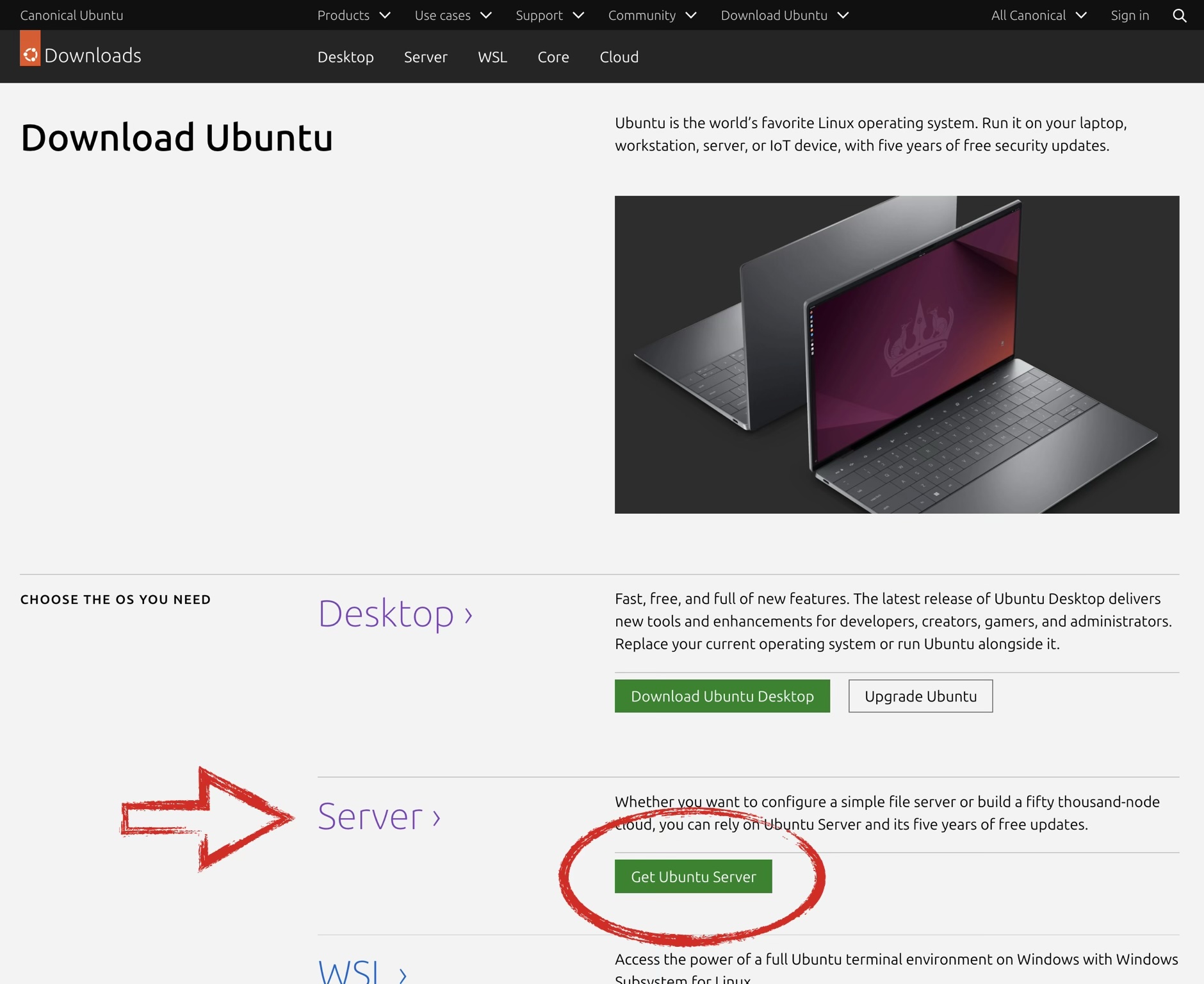
The Download Ubuntu page.
For the installation media, the ISO image was obtained from the Ubuntu download page and written to a USB drive with Rufus on Windows. Rufus is generally recommended on Windows, Disks on Ubuntu, and balenaEtcher on macOS; this time Rufus on Windows was used. Since only 22.04 LTS is certified for this machine and the official stance recommends a custom image, ideally the release should have been verified in a Live environment before installing 22.04 LTS or later. Trusting Canonical and Lenovo, however, that verification was skipped and "Install Ubuntu" was boldly selected. No special configuration was required for Secure Boot, and apart from careful attention to partition selection the installation proceeded as a standard desktop setup. Drivers and firmware appear to be recognized automatically, which suggests that at least some of the issues formerly addressed by the 22.04 LTS-era custom image have been resolved in 24.10. Wi-Fi connects without any additional configuration and operates without issue in daily use.
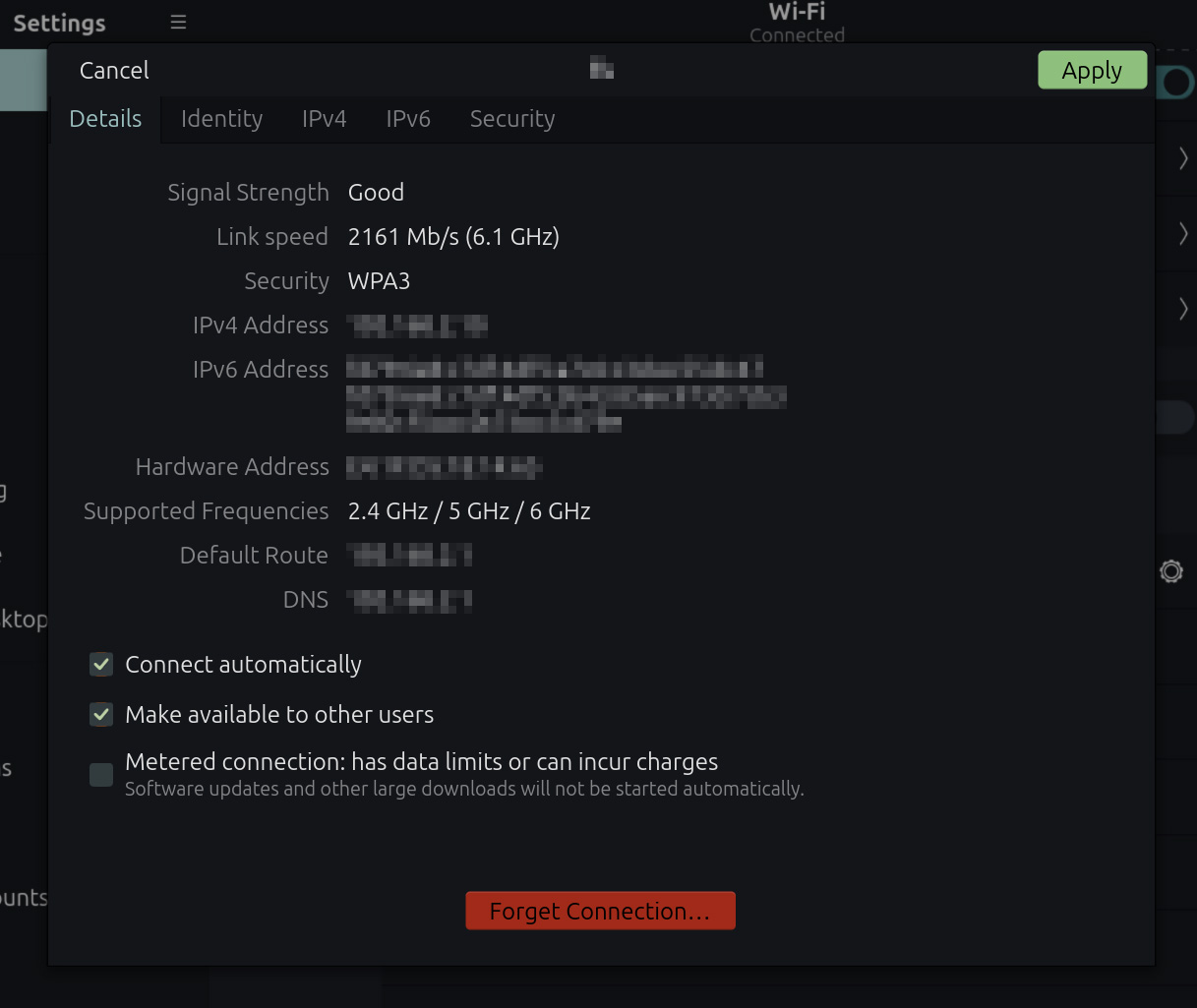
Wi-Fi connects and operates stably with no additional configuration required.
The fingerprint sensor works for both enrollment and authentication. Recognition accuracy is markedly poor, however, often requiring the finger to be re-scanned several times, making it impractical for daily use. It is possible that enrollment technique or finger placement is a factor, and for now this is noted only for reference. The microphone has also been confirmed to work through actual use. Face recognition has not been used, as there was no operational need for it. The camera itself has not been verified either; VLC was installed from App Center in an attempt to test it, but VLC would not even launch, so verification through a different route will be required. This machine is not equipped with a WWAN module.