

4. If You Have Complaints, Fix Them by Hand
Fragmentation of Distribution Formats
Ubuntu applications are distributed through several coexisting formats with different philosophies: the standard .deb, along with Snap, Flatpak, and AppImage. From a user's standpoint, this readily produces an impression of fragmentation. In practice these formats are not interchangeable, and the OS-agnostic formats (Snap, Flatpak, and AppImage) should be avoided whenever possible. Application icons displayed in the Ubuntu Desktop's Dock or Dash are also not guaranteed to be registered automatically regardless of distribution format; in most cases manual configuration was required. Investigation revealed that .desktop files must often be authored by hand in locations such as ~/.local/share/applications. The fact that this step is not automated even for applications installed via what appears to be the official app store is, to put it mildly, an opaque design. It would be nearly inconceivable on a Mac. It is conceivable that long-time Linux Desktop users regard such mandatory manual operations as a hallmark of "freedom." What the author would consider an improvement in usability might be perceived by them as a regression. That said, the author has used non-desktop UNIX/Linux environments for a quarter century, and in that world the provisioning and deployment of template .conf files is considered common sense, so it seems rather that the Linux Desktop is the outlier.
Confusion During the Wayland Transition
As of the end of 2024, the Linux Desktop was mid-transition from the X Window System to Wayland, which was another major source of confusion. On macOS, relatively sweeping changes suddenly announced by Apple, such as architecture transitions (PowerPC to Intel 32-bit to Intel 64-bit to Apple Silicon), are typically followed by major software in a comparatively short period. No such convergence speed has been seen on Linux: seventeen years after the first release of Wayland, adoption is still incomplete. Chromium-based applications in particular exhibited persistent and bewildering defects such as blurry text rendering, inability to input Japanese, and failure to launch. On investigation, it even emerged that patches had been submitted upstream ten months earlier, yet Chromium's maintainers were simply ignoring them. After applying provisional workarounds, the problems ultimately resolved, and noticeable issues are now rare. In other words, 2024 through 2025 saw major progress in the Wayland transition, and because this period happened to coincide with the migration's peak, frustrating incidents occurred frequently.
Initial Tuning
GNOME must be tuned individually through dconf, gsettings, xremap, and similar tools, and out of the box, fine-grained operability tends to leave much to be desired. Accordingly, keyboard shortcuts, key remappings, and the various suggested or auxiliary features were all reviewed, and since none were needed, all were disabled. As a whole, a counterpart to the Minimal installation of the Server edition (which does not install tools intended for human users) would be desirable on the Desktop edition as well, but at least no such explicit option was visible, so preinstalled applications were removed by hand. Because the author does not use Microsoft 365 Apps, similar offerings such as LibreOffice are also unused. As for Firefox, in its default state it even fails to launch when using external tools that turn websites into desktop applications, so literally nothing was left in place. The initial tuning was a process pursued with a sustained sense of unilateral antipathy.
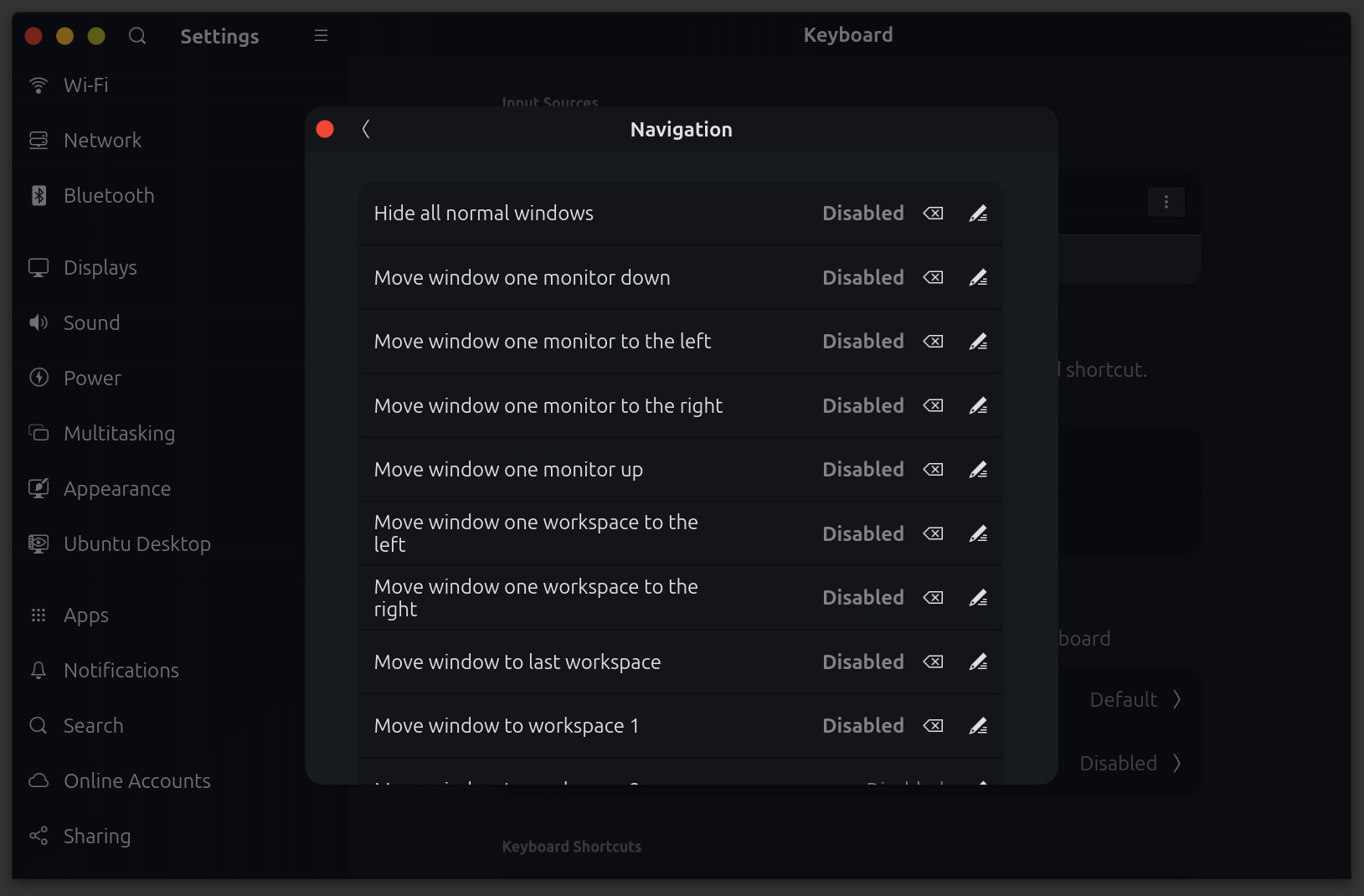
Disabled, Disabled, Disabled, without hesitation.
Once such initial tuning was complete, the resulting operation felt closer to the Mac in consistency, and in fact felt more refined, with markedly improved practicality. In particular, Ubuntu 25.04 resolved the Chromium-related issues, and by 25.10 the remaining unstable behaviors were all but gone. As a desktop environment, the operability is highly favorable among the operating systems the author has used. In short, the great strength is the ability to tune broadly whenever something is not to one's liking, while the weakness is that, because the unifying design guidance for the Linux Desktop or for GNOME as a whole is loose, individual implementations favor freedom, and any modification requires a certain amount of investigation. This learning curve is steep, and it is easy to imagine that an ordinary user trying this out without preparation would uninstall it almost immediately.
Practical Applications
From the standpoint of software development and document creation, the terminal, Cursor, Visual Studio Code, and GitKraken are available, as are major document-oriented applications such as Logseq, Obsidian, and Typora, all with Linux Desktop versions. As of 25.10 these are all sufficiently practical on GNOME. Firefox, naturally, works without issue. Wine also appears to operate stably: Windows applications such as Claude Desktop, Grammarly, Scrivener, and Scrapple run correctly, including license activation. Syncthing and Tailscale likewise operate without issue, as one would expect. Dropbox, on the other hand, seems to have lost all motivation, and conveniences such as Online-only files are not provided. Even so, if one restricts use to software development and document creation in order to exploit the X1 Carbon's high portability, Ubuntu Desktop is an easy-to-use environment.
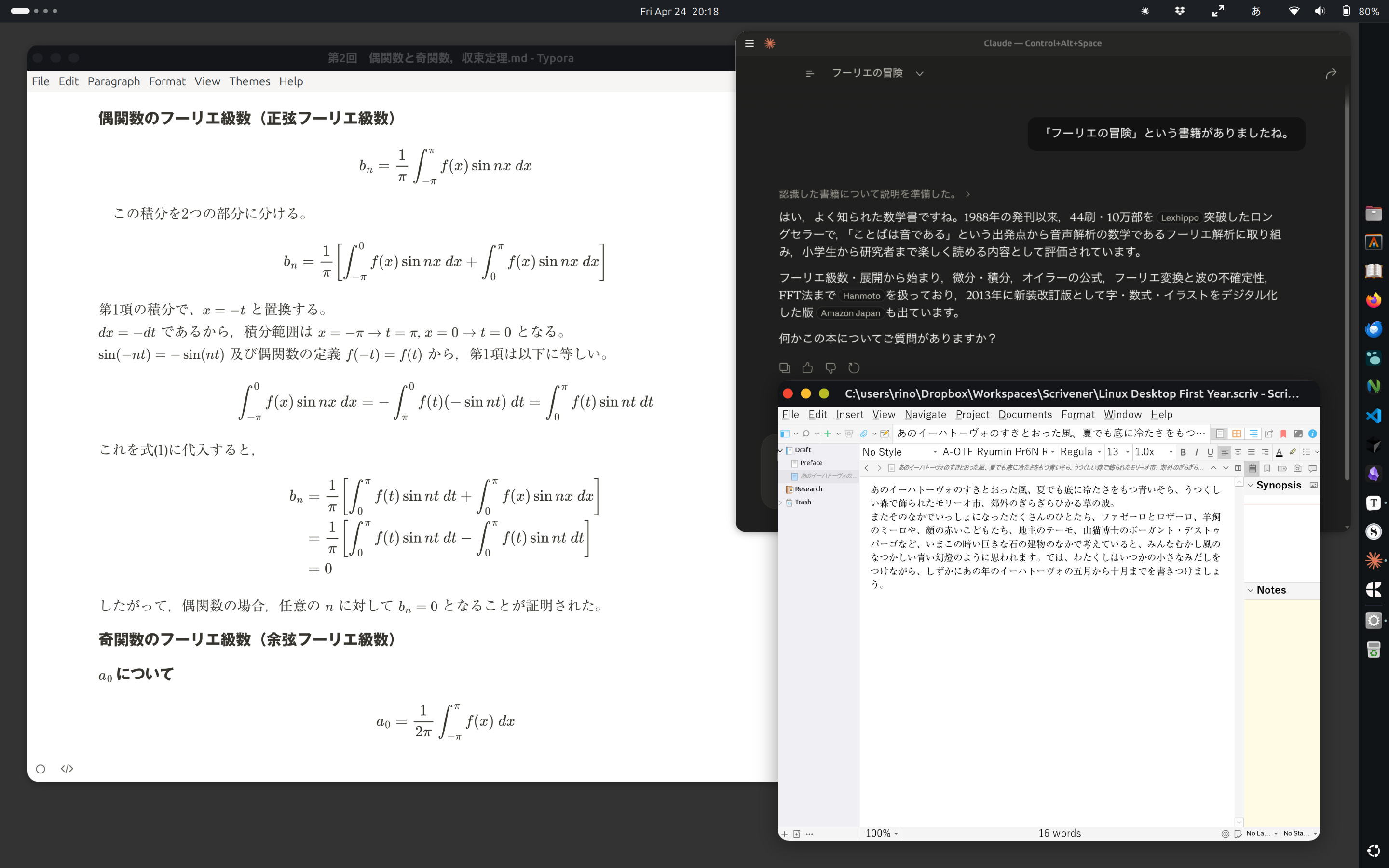
On Ubuntu Desktop, Typora (Chromium), Claude Desktop (aaddrick/claude-desktop-debian), and Scrivener (via Wine) running simultaneously.
Japanese Input
For Japanese input, the author uses ibus-mozc (Mozc 2.29.5160.102), which is installed by default in Ubuntu 25.10. It operates stably under Wayland, and no practical issues have been observed in GNOME applications, Chromium-based browsers, Firefox, or Electron-based applications. Mozc's conversion accuracy is better than the macOS default Japanese input (live conversion), and overall it is easy to use. That said, the author has used ATOK since the MS-DOS era and currently maintains an annual subscription to ATOK Passport (Premium). A large part of the preference is due to long familiarity, but for overall strength in conversion accuracy, predictive input behavior, and dictionary functionality, ATOK still has the edge. The gap, however, is not such that ATOK is indispensable, and Mozc alone suffices for everyday writing and coding. Google Japanese Input has not been considered. Aside from the absence of ATOK, the Japanese input environment on the Linux Desktop is already sufficiently practical.
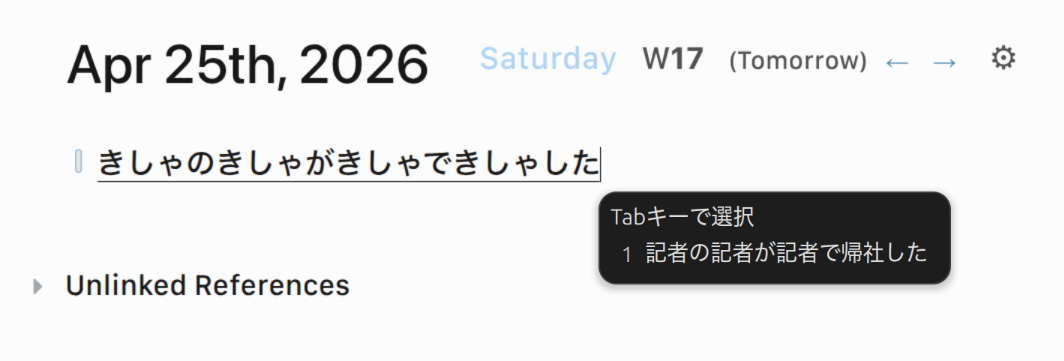
An intentionally difficult sentence, which ATOK correctly renders as "貴社の記者が汽車で帰社した," fed to Mozc.
Security and Update Operations
A factor that cannot be overlooked in daily operation is how security and updates are handled. Ubuntu offers an LTS release every two years (five years of support) and a regular release every six months (nine months of support); the former prioritizes stability, while the latter offers access to newer features. Both 25.04 and 25.10 discussed in this article are regular releases, and the short support window requires following each successive release promptly. For everyday use where stability is the priority, basing the system on an LTS release is the reasonable choice. However, various defects under Wayland were only resolved in 25.04 and later, and given that this is a client machine used daily, the author sees little need for LTS personally. Automatic application of security updates via unattended-upgrades is enabled by default, and with Ubuntu Pro even kernel live patches through livepatch are available at no cost for personal use. Full disk encryption can be enabled at install time via LUKS, which is the equivalent of FileVault on macOS.
When compared with macOS, the difference most easily overlooked is the system-protection model. macOS uses System Integrity Protection (SIP) to restrict modifications to paths such as /System even for root. This is the rootless model, and kernel extensions also require signing and explicit authorization. Linux has mechanisms such as AppArmor, SELinux, the kernel lockdown mode, and Secure Boot, but the integrated experience across them is clearly stronger on macOS. For users who take little interest in configuration, the out-of-the-box safety of current macOS surpasses that of Ubuntu Desktop. This is, of course, a trade-off against freedom to modify the system.
There is also a large gap in the choice of anti-malware software. Consumer-oriented products widely used on Windows and macOS, such as Norton 360, Kaspersky, and ESET, are effectively unavailable for the Linux Desktop, or exist only as server-oriented products. In practice the only option is the OSS-based ClamAV, which provides only signature-based antivirus scanning and lacks the modern security-suite features such as real-time resident protection, web protection, anti-phishing, and identity protection. The remaining alternatives are enterprise-class EDR/XDR products such as CrowdStrike Falcon, SentinelOne, and Microsoft Defender for Endpoint, which are not something an individual would deploy alone. For ordinary users who have relied on "install antivirus, feel safe," moving to the Linux Desktop demands a rearrangement of that very premise. In this respect as well, the Linux Desktop is selective about who it suits.
Backups
Backups on the Linux Desktop side are configured by running borgserver under Container Station on a QNAP on the LAN, with borg pushing backups to it. Backup data is stored in the QNAP's data volume, and the same mechanism is reused as the backup target for a VPS (Ubuntu Server). Since a borg-based operation was already in place on the Ubuntu Server side, the X1 Carbon was simply added to that flow. borg's configuration is nevertheless hardly beginner-friendly. Initializing the repository, choosing encryption modes, operating prune and compact, and handling SSH keys and append-only mode all require the first several days to be set aside for configuration.
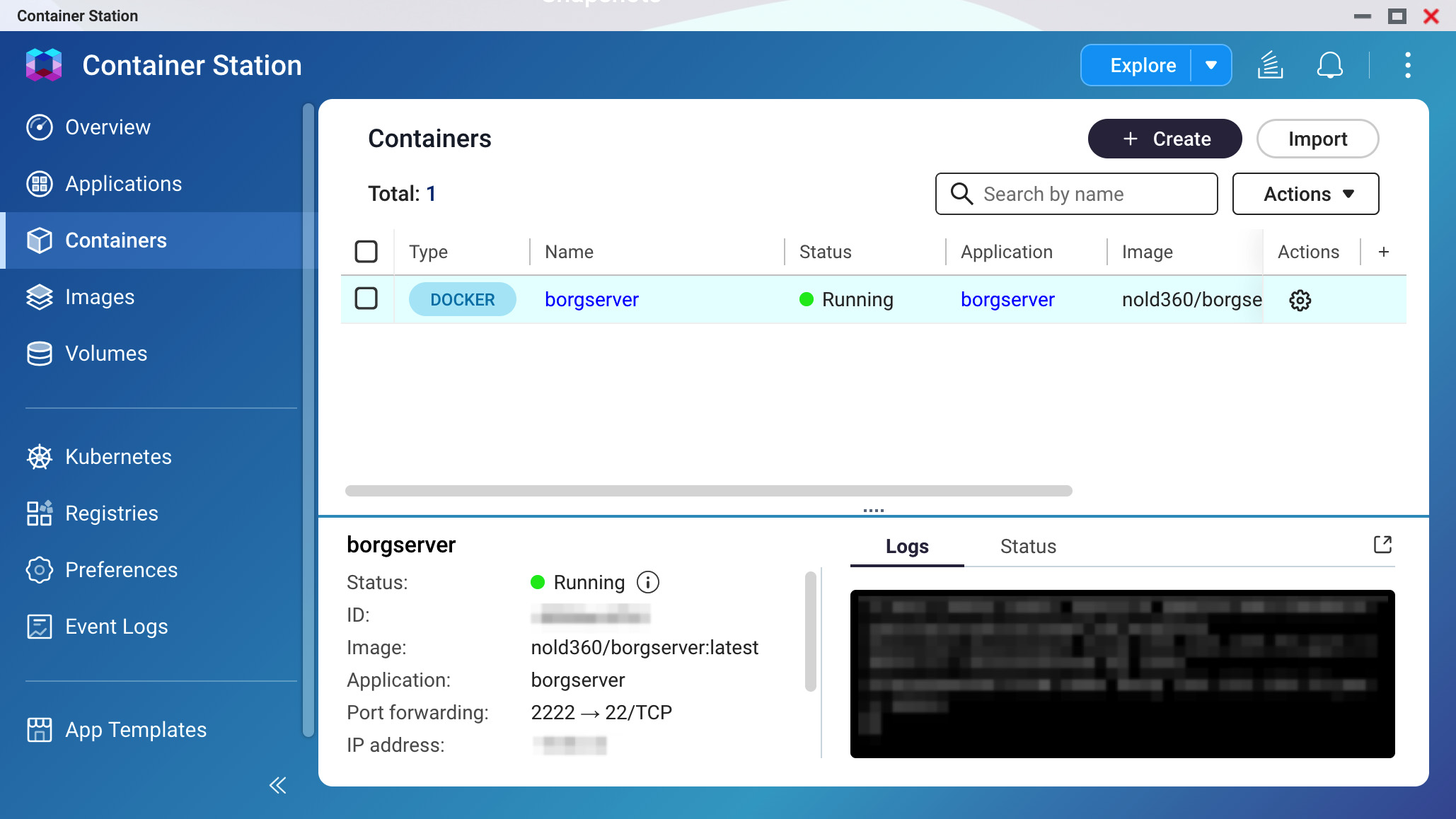
The borgserver container running on QNAP Container Station.
One point deserves clarification here. The Linux Desktop does in fact have a GUI backup tool integrated with GNOME, Déjà Dup (with duplicity as its backend), and it is installed by default on Ubuntu. If SMB or SFTP is specified as the target, it can be pointed at a QNAP to handle scheduling, encryption, retention, and GUI-based restore all in one package. The reason borg was chosen in this article is to consolidate with existing server-side operations; for the ordinary case of wanting something as easy as Time Machine, the proper point of comparison on the Linux Desktop side is not borg but Déjà Dup. Déjà Dup itself has not been tested here, so no evaluation is offered, but it would be dishonest to leave the impression that the Linux Desktop offers no GUI-based backup solution, and this point is therefore stated clearly.
That said, the Mac backup experience is still simpler by a notch. QNAP supports Apple Time Machine, and enabling it in HBS 3 Hybrid Backup Sync causes the QNAP to appear as a backup destination candidate in each Mac's System Settings > General > Time Machine. From then on, backups are created automatically and continuously merely by selecting the destination. Déjà Dup may well approximate this level of ease, but macOS has two decisive advantages. The first is the unification of restore paths: from the macOS installer, the Migration Assistant, or a fresh setup, a Time Machine archive can be specified to restore the entire environment, including applications. The second is native NAS support. QNAP officially advertises "Time Machine support," and HBS 3 handles it as a first-class item; this is an integration at the protocol layer with the Apple ecosystem, a characteristic not found in GUI backup tools on the Linux Desktop.
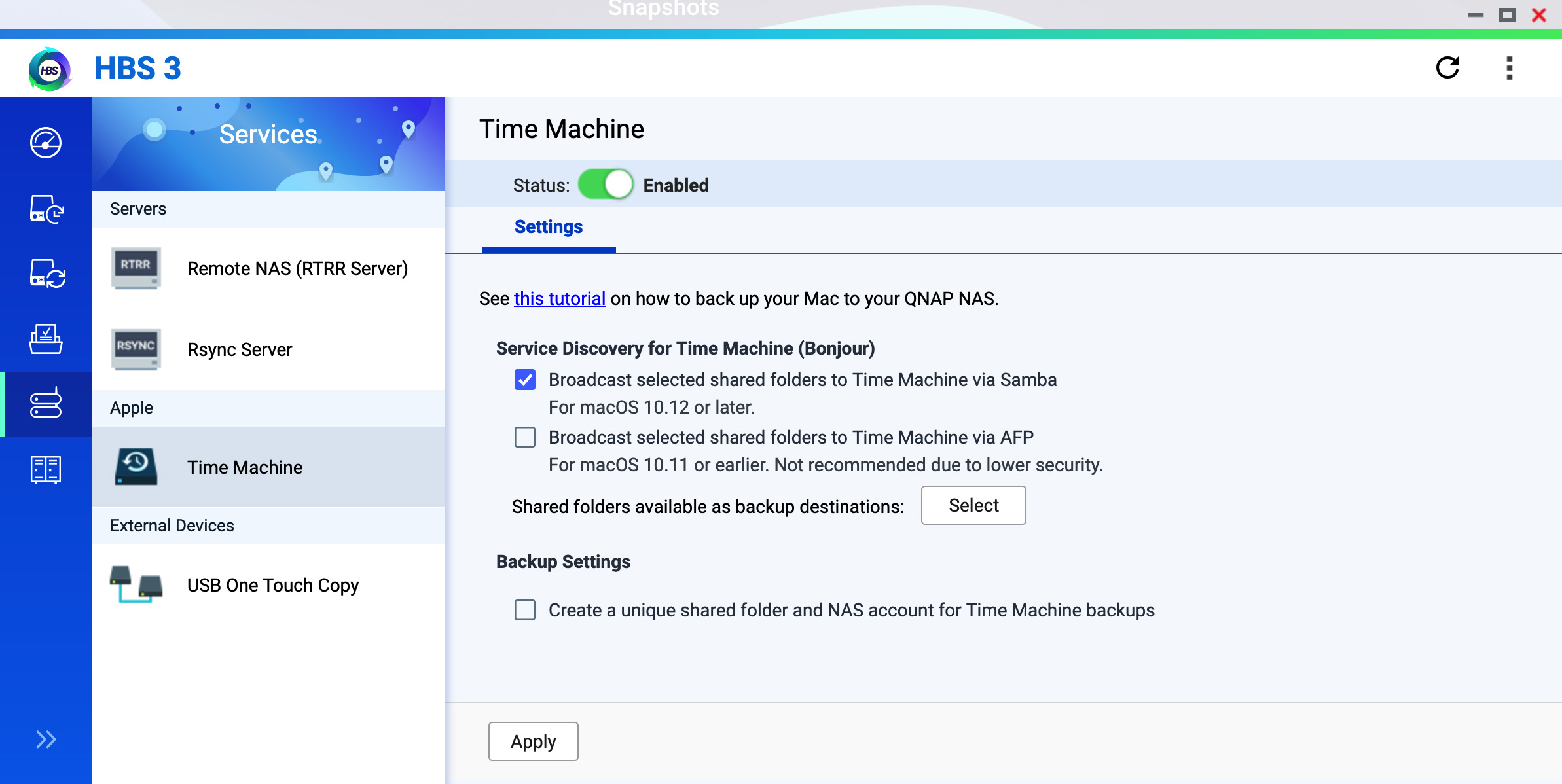
The Time Machine enablement page of QNAP HBS 3 Hybrid Backup Sync.